
FX Spread
The FX Spread function under Admin → Pricing → Settings allows you to define spreads used during foreign exchange rate retrieval. These spreads can be maintained for all clients based on Relationship Pricing or for Specific Clients.
The spreads maintained here are not automatically applied to all existing client records. Instead, they are used by Aura during exchange rate retrieval based on the defined combination of client, relationship pricing, FX type, and currency rate type.
FX Spread records act as a reference during rate calculation and do not override or update client-level configurations automatically.
This helps you centralize spread configuration while still allowing flexibility at the client level.
The following are the tabs under FX Spread:
To add a New FX Spread,
1. From the Admin menu, click Pricing, and then under Settings click FX Spread. FX Spread search page appears.

All available FX Spread records are displayed along with their status when you click the "All" button.
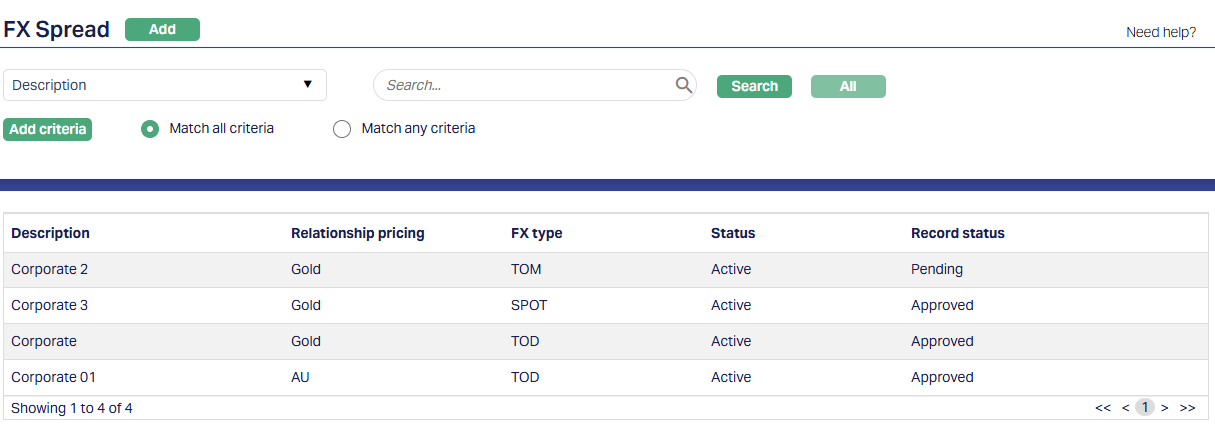
2. Click Add. New FX Spread → Profile (1/2) page appears.
You can define whether the FX Spread applies to -
- Any Client: The spread is maintained at relationship pricing level and can be referenced across clients during rate determination.
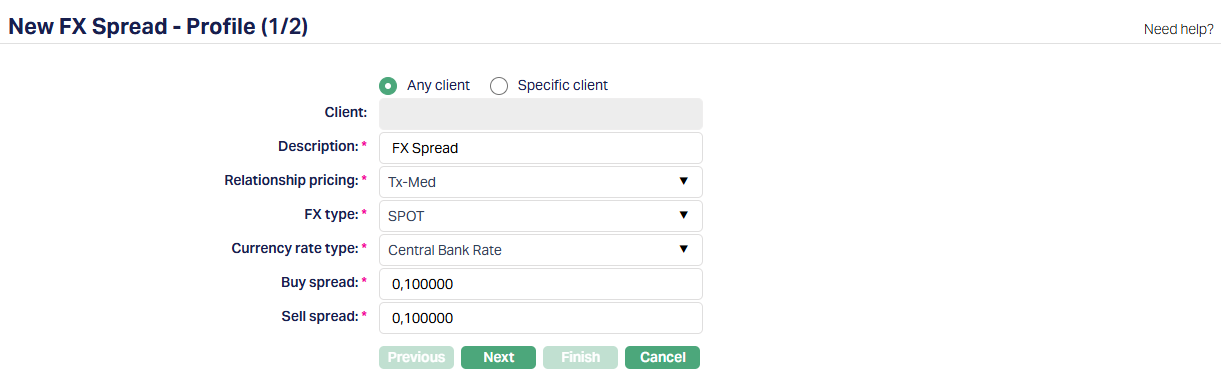
- Specific Client: The spread is maintained only for the selected client.
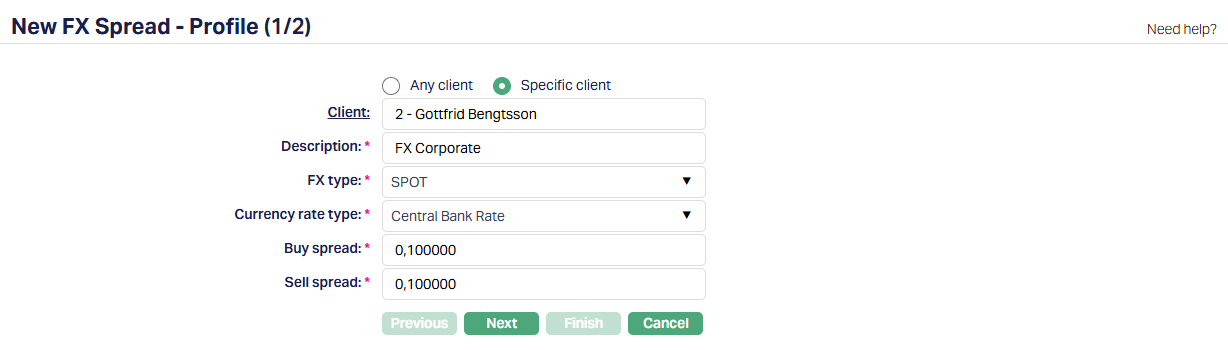
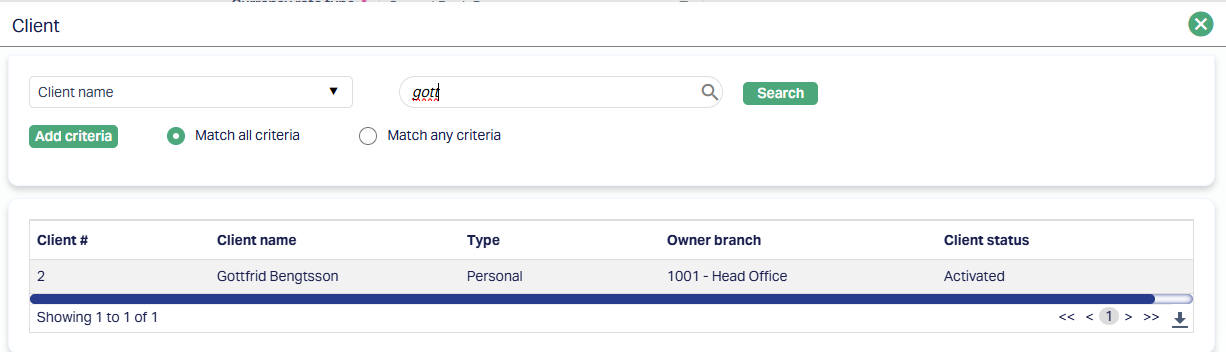
3. If Specific client is selected, you must select the Client by clicking on client hyperlink. The Client search page appears where you can search for a client with relevant criteria and select the required client. You can also input the client name and select the required client from the list displayed by Aura. Sample screenshot shown below.
When Any client is selected, the Client field is disabled. When Specific client is selected, the Client field becomes enabled and mandatory.
4. Enter the Description or label of the FX Spread record. This helps you identify the record in the FX Spread list. The field is mandatory and should clearly indicate the purpose or scope of the spread.
5. Select the Relationship pricing profile from the drop-down maintained under Admin → Pricing → Settings → Relationship Pricing. The FX Spread will be linked to this specific relationship pricing, and these spreads are used during exchange rate retrieval when the selected relationship pricing is applicable.
This field is applicable when maintaining FX Spread for relationship-based records only.
6. Choose the FX type contract this spread applies to. The drop-down contains:
TOD - Today's contracts
TOM - Tomorrow's contracts
SPOT - Spot contracts
This selection determines the applicable FX Spread during exchange rate retrieval.
Note: Each combination of Relationship Pricing and FX Type must be unique. You cannot create a new record if the same Relationship Pricing and FX Type already exist. Aura displays an error message if a duplicate combination is entered.
7. Select the Currency Rate type from the list maintained under Admin → Currency → Currency Rate Types. Each rate type represents a reference against which the spread will be applied.
8. Buy Spread - Enter a positive number value (up to 6 decimal places). This value is subtracted from the mid-rate to calculate the buy rate. The default is zero, and it cannot be negative.
9. Sell Spread - Enter a positive numeric value (up to 6 decimal places). This value is added to the mid-rate to calculate the sell rate. The default is zero, and it cannot be negative.
Note: If a Custom field is mapped to FX Spread under Admin > System Codes → Custom fields → Field mapping, then an additional screen will appear before the confirmation screen.
The custom fields will be mandatory or non-mandatory based on the rules set at the Field mappings.
For more detail on custom field functionality please refer Admin → System codes → Custom fields → Field mappings manual.
10. Click Next. New FX Spread → Confirmation (2/2) page appears with the details you have entered.
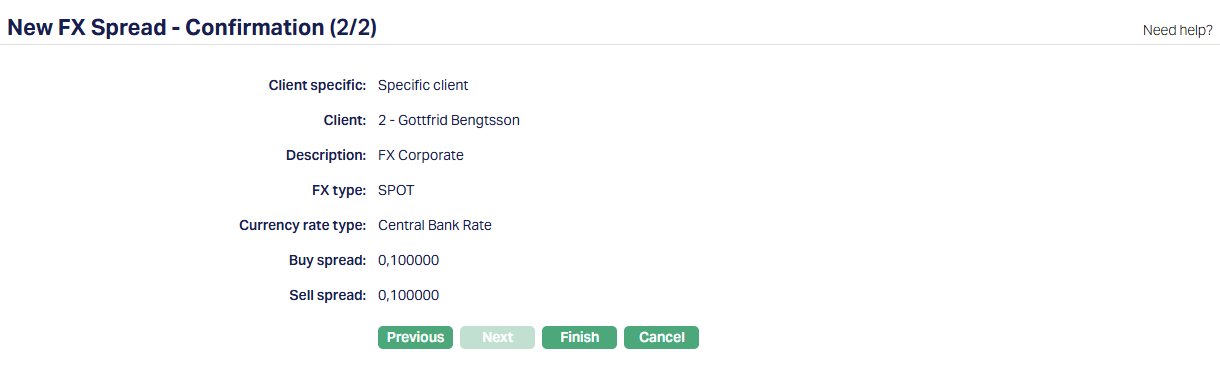
11. Click Finish. FX Spread page appears and New FX Spread is created, and you will see the Profile tab by default.
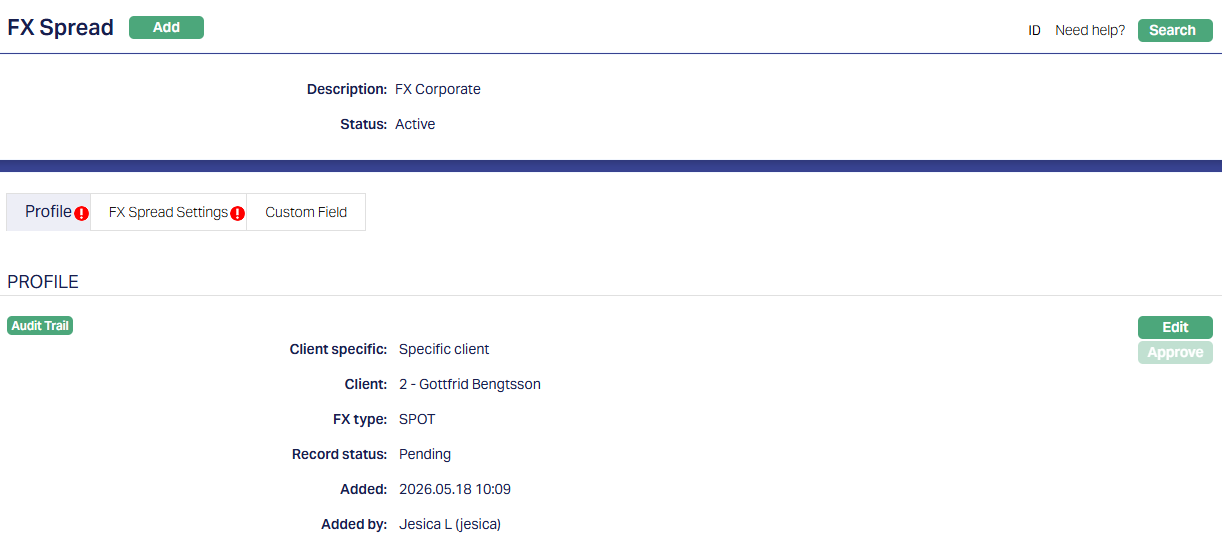
Profile
Profile tab, which is the default tab in the FX Spread screen, shows the basic details of the FX Spread. Refer New FX Spread → Profile (1/3) for details.
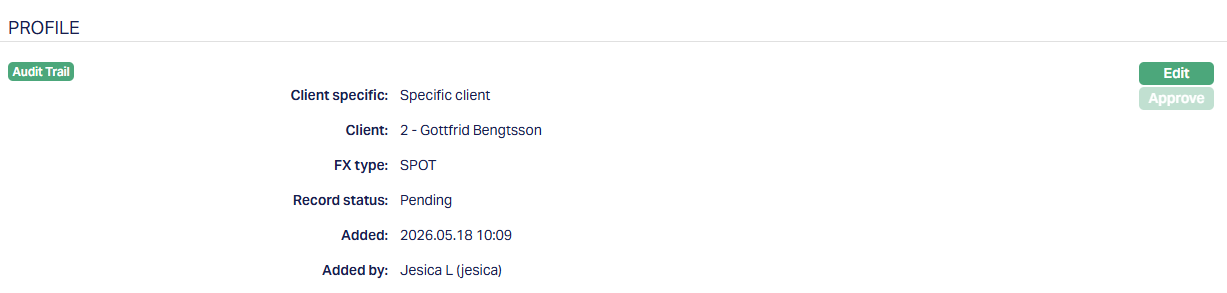
Functions: Edit, Approve.
To edit,
1. Access FX Spread screen. Profile tab is displayed by default.
2. Click Edit. Edit Profile page appears.

Only the Description field is editable.
3. Click Save. Profile tab appears with the edited details.
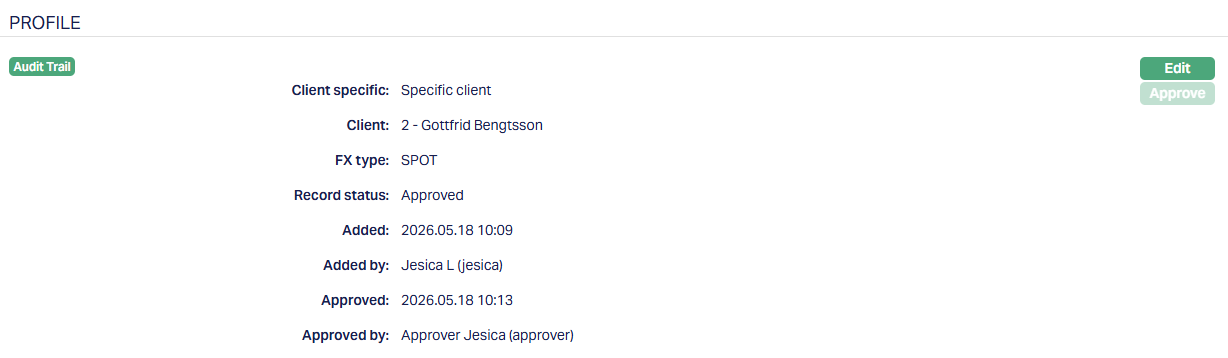
Functions: Edit, Approve.
Note:
The edit option is available only when the record is in Pending Status.
Status of the record is Pending till it is approved by another user. On approval, the tab status is set to Approved and the red bubble disappears.
FX Spread Settings
The FX Spread Settings tab displays all the Currency Rate Type spread records associated with the FX Spread. Each record shows its buy and sell spread values, current status, and audit details.
Records are displayed in reverse chronological order, with the latest record appearing first.
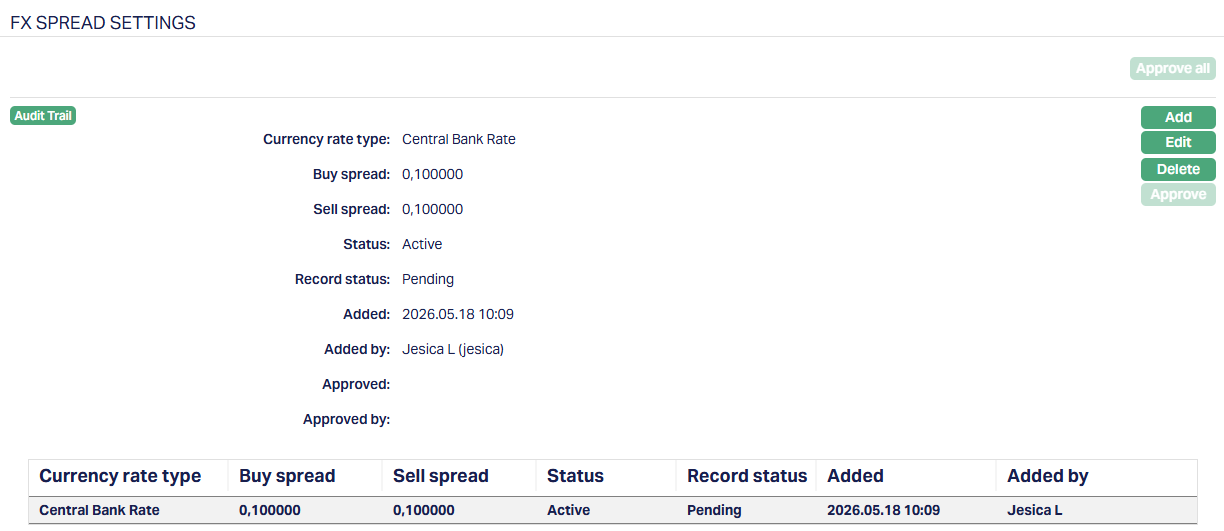
Functions: Add, Edit, Delete, Suspend, Approve, Approve all.
To edit,
1. Access FX Spread screen. Select FX Spread Settings tab.
2. Click Edit. Edit FX Spread Setting page appears.
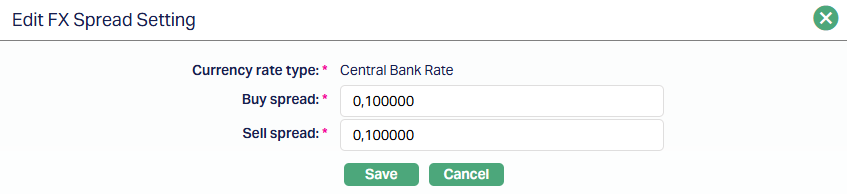
The Buy Spread and Sell Spread fields are editable.
3. Click Save. FX Spread Settings tab appears with the edited details.
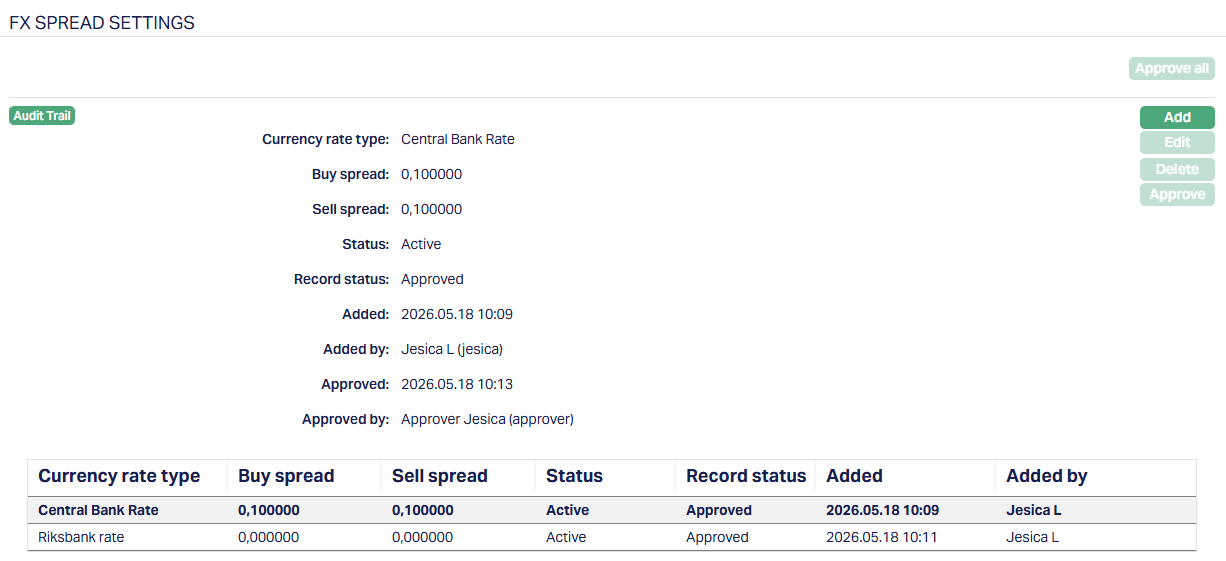
Functions: Add, Suspend.
To add,
1. Access FX Spread screen. Select FX Spread Settings tab.
2. Click Add. Add FX Spread Setting page appears.
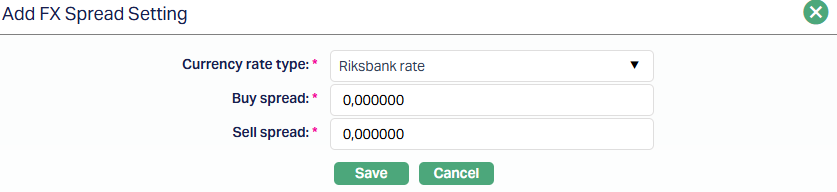
3. Select the Currency Rate type from the list maintained under Admin → Currency → Currency Rate Types.
Note: Each Currency Rate Type can only be used once. You cannot add another record with the same currency rate type unless the previous one has been suspended.
4. Enter a positive number value for Buy spread to be subtracted from the mid-rate.
5. Enter a positive number value for Sell spread to be added to the mid-rate.
6. Click Save to confirm the entry. The new record appears in the FX Spread Settings tab with the status pending until approved by a different user.
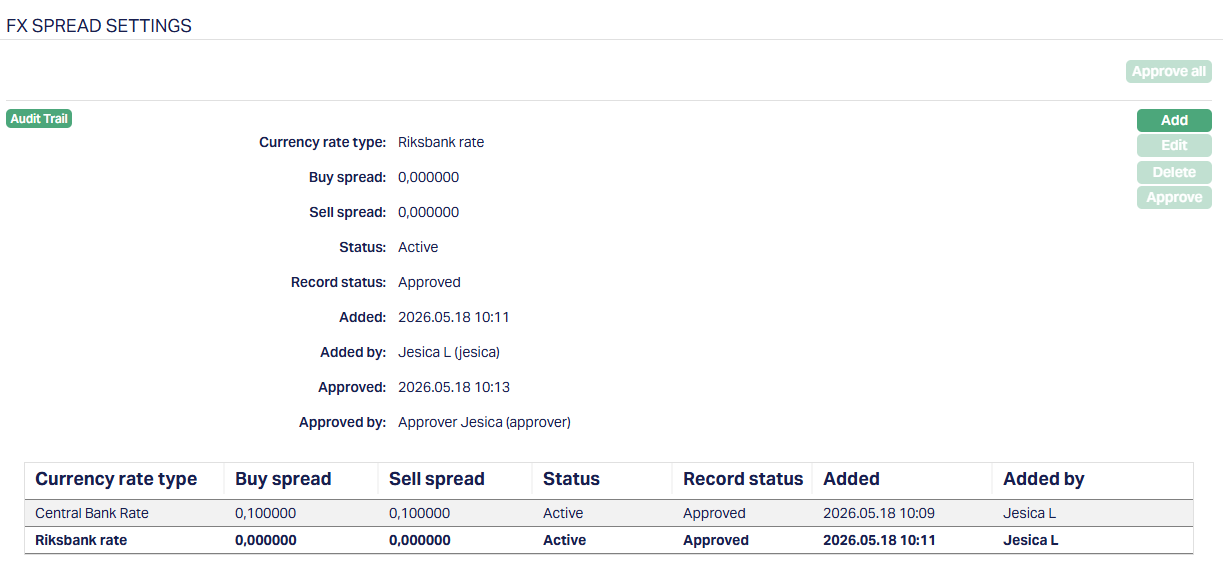
The status in the grid is displayed in reverse chronological order - the latest status appears first.
Suspension of FX Spread Setting
The Suspend option is available only for records that are in Approved status and are maintained for Relationship-based (Any Client) records only. This option is not available for Specific Client records.
To suspend a FX Spread Setting for Relationship-based records,
1. Access FX Spread screen. Select FX Spread Settings tab.
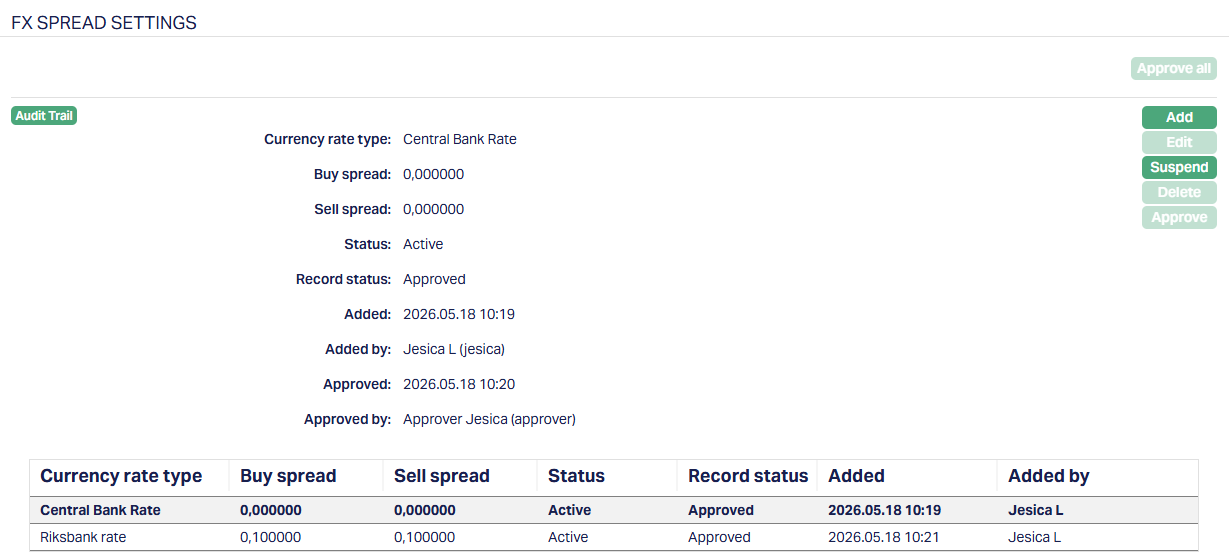
2. Select the FX Spread you want to suspend from the list of records.
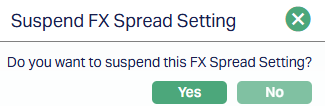
3. Click Suspend. A confirmation message appears asking if you want to suspend the record. Click Yes to Confirm.
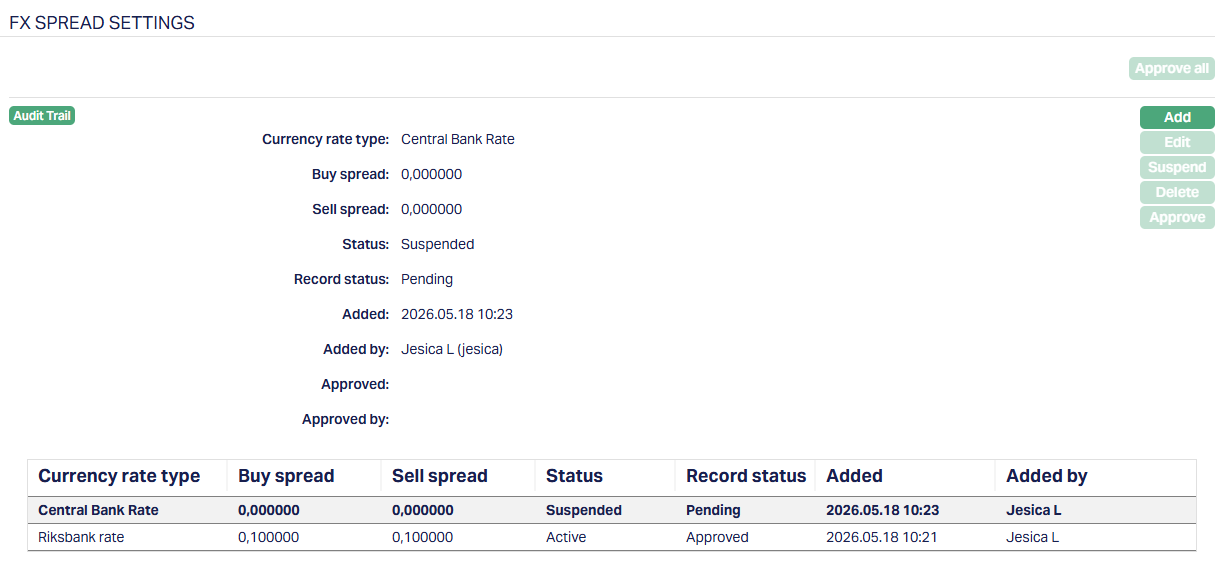
Once suspended, the record is no longer considered during exchange rate determination.
Note:
Only records with Approved status can be suspended.
Suspended records cannot be reactivated. If you need to use the same Currency Rate Type again, you must create a new record.
Delete: Permanently removes a record. Enabled only when the record is Pending.
Approve: Confirms and activates a single Pending record. Approval must be performed by a user other than the creator.
Approve all: Approves all Pending records in bulk. Available only for users other than the creator.
The additional fields that are shown are:
Status indicates the current state of the record. It will be either: Pending - If the record is waiting for approval or Approved - If the record has been reviewed and finalized.
Added shows the date and timestamp when the record was created and Added by displays the user ID and full name of the person who created the record.
Approved shows the date and time when the record was approved and Approved by displays the user ID and full name of the person who approved the record.
How FX Spread is applied:
Aura retrieves the applicable buy and sell spreads using the following logic and applies them to CRM → Client Spread.
Case 1: Specific Client maintained
Aura checks for an FX Spread record defined for the specific client, matching the currency pair and FX type.
The applicable Buy Spread and Sell Spread values are retrieved for the matching currency rate type and applied to the client spread during rate calculation.
If no matching record exists, or if the Buy Spread and Sell Spread values are zero, Aura checks the Relationship Pricing. If a valid Relationship Pricing record exists, it is used.
If the Relationship Pricing record is suspended or not available, Aura uses the rates from Admin → Currency.
Case 2: Any Client (Relationship-based)
Aura uses the FX Spread defined for the selected Relationship Pricing, based on the currency pair, client, and FX type.
The applicable Buy Spread and Sell Spread values for the matching currency rate type are retrieved and applied to the client spread during rate calculation.
Note: Changes made in Admin → FX Spread do not update or override to existing client-level records. However, FX Spread maintained for a specific client will be available at the client level after approval.
Custom Field
This menu option allows you to define fields apart from those that are already available in the standard version of Aura. Thus, it enables you to customize additional data storage and use as required to suit your specific business needs.
To maintain Custom Field,
1. Access FX Spread page. Click on Custom Field tab.

2. The custom field(s) appears only when it is created in Admin → System codes → Custom fields → and is linked to the Specific Product option in Admin → System codes → Custom fields → Field mappings.
3. Click Edit. Edit Custom Field page appears. In the following illustration, one custom field FX Spread number 1 has been mapped to the Product as shown below:

4. Enter the number associated with the FX Spread.
5. Click Save. Custom Field tab appears with the edited details.

Function: Edit